
In the Transform panel, Vertex Connect provides two options for working with transforms: World and Local. These options control how a selected item is moved or rotated. They do not describe the item’s true absolute position in the scene the way some CAD tools do.
What the World and Local options mean
World
When World is selected, the panel shows the combined transform of the selected item and any transforms applied to its parent items. The axes align to the orientation shown in the view cube.
For example, if a parent item has a transform of (300, 0, 0) and the selected child item has a local transform of (1, 0, 0), the child item’s World value will reflect the combined result of those transforms and appear as (301, 0, 0).
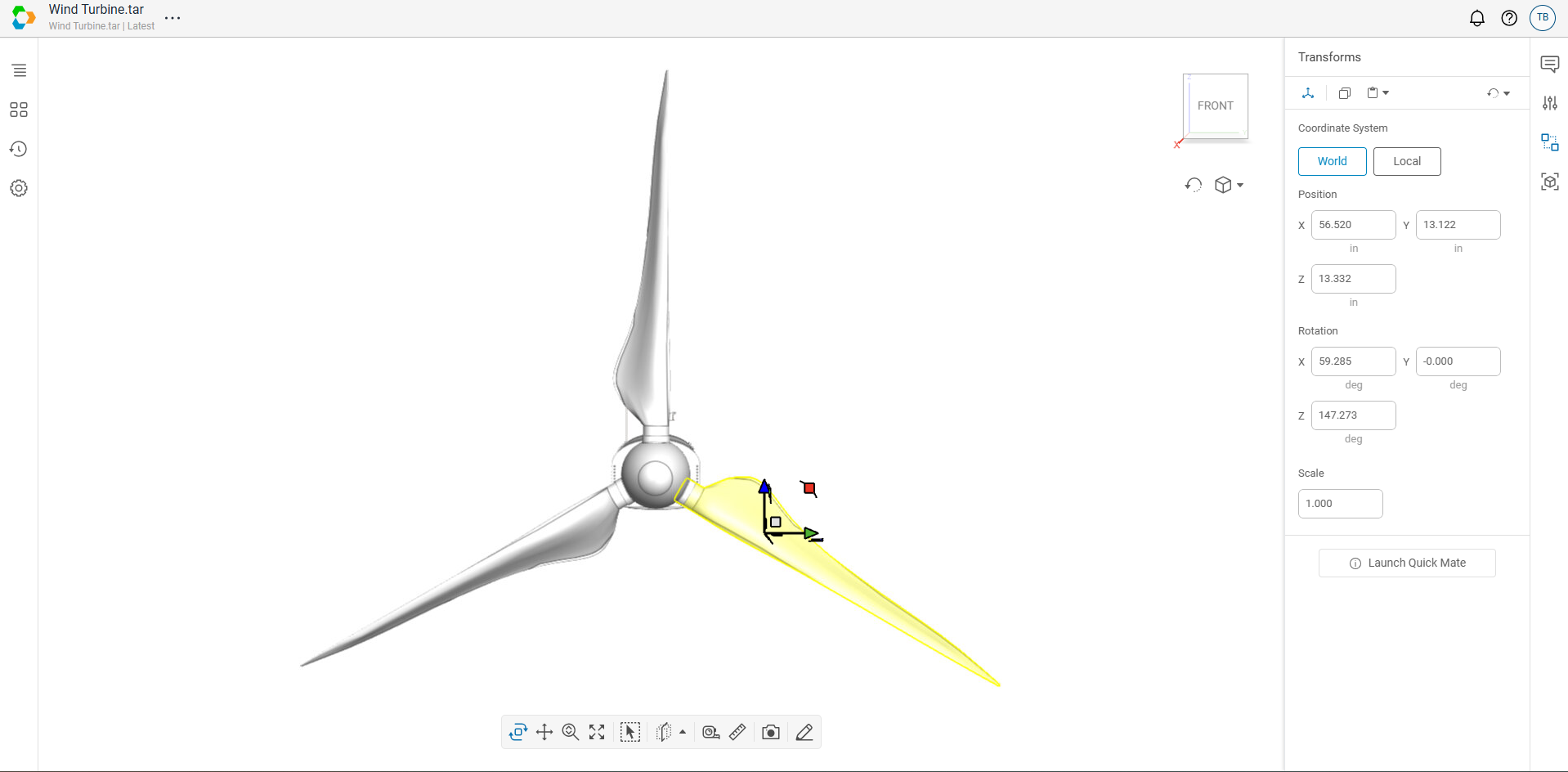
Use World when you want to move or rotate a selected item using the scene-aligned axes shown by the view cube.
Local
When Local is selected, the panel shows the transform applied directly to the selected item. The axes align to the orientation of the selected part or assembly, which may differ from the orientation shown in the view cube.
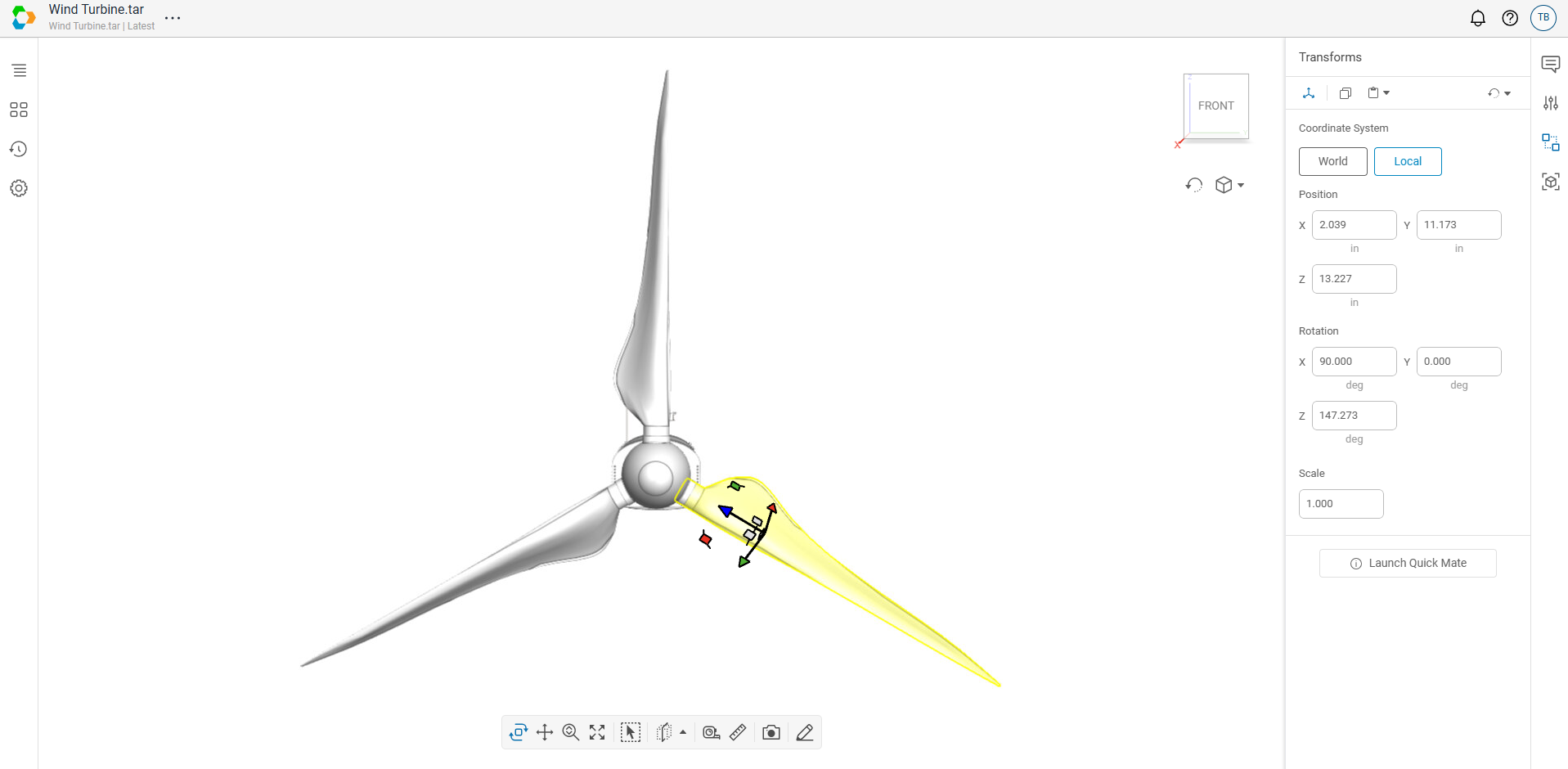
Use Local when you want to move or rotate a part based on the part’s own orientation.
What these options affect
The World and Local options affect how transforms are applied in the Transform panel. They determine how the axes are defined and, therefore, how the transform widget is aligned:
- In World, the axes align with the orientation of the view cube
- In Local, the axes align with the orientation of the selected part or assembly
These options are most useful for choosing how you want to manipulate an item.
When to use each option
Use World when you want to:
- move an item using axes aligned to the view cube
- work in scene-aligned directions
Use Local when you want to:
- move an item based on its own orientation
- work with rotated parts or assemblies more intuitively
What the panel does not show
The Transform panel shows the transform values applied to the selected item in the current context. It does not show the selected item’s true absolute position in world coordinates.
This is especially important to remember when you select an assembly that has no transform of its own, but contains child items that do.
Why two items can show the same values
In some cases, two different items may show the same values in the Transform panel even though they appear in different places in the model.
This usually happens when the selected assembly itself does not have a transform applied, but one or more of its child items do.
For example, consider this tree:
- Root A (no applied transform)
- Parent B (no applied transform)
- Child C (applied transform of (0, 100, 0))
- Parent D (no applied transform)
- Child E (applied transform of (-200, 0, 0))
- Parent B (no applied transform)
In this example:
- Selecting Parent B shows (0, 0, 0) because no transform is applied directly to Parent B
- Selecting Child C shows (0, 100, 0) because that transform is applied to Child C
- Selecting Parent D shows (0, 0, 0) because no transform is applied directly to Parent D
- Selecting Child E shows (-200, 0, 0) because that transform is applied to Child E
The panel reports the transform information for the selected item and its parent chain, not the position of all child geometry under that selection.
Imported file behavior
Transform values can also be affected by how source file data is imported. Different file types may represent transform and position information differently. As a result, the Transform panel may reflect differences that come from the source data, not just from actions taken in Connect.
Summary
Use the World and Local options to choose how transforms are applied to a selected item.
The Transform panel shows transform values for the selected item in context. It does not show the selected item’s true absolute position in world coordinates.