
You can customize your experience in Vertex Publish using the Publish Settings within the User Settings dialog. The Publish Settings tab appears in User Settings only if you have Publish access. You can view the settings at any time, but you can change them only while you're in Publishing mode. These settings apply only to your account.
Change Your Publish Settings
- Open a model in Publishing mode.
- Select your initials in the top right corner, and then select User Settings.
- Select the Publish Settings tab.
- Set each setting to your desired behavior.
- Select Save Changes.
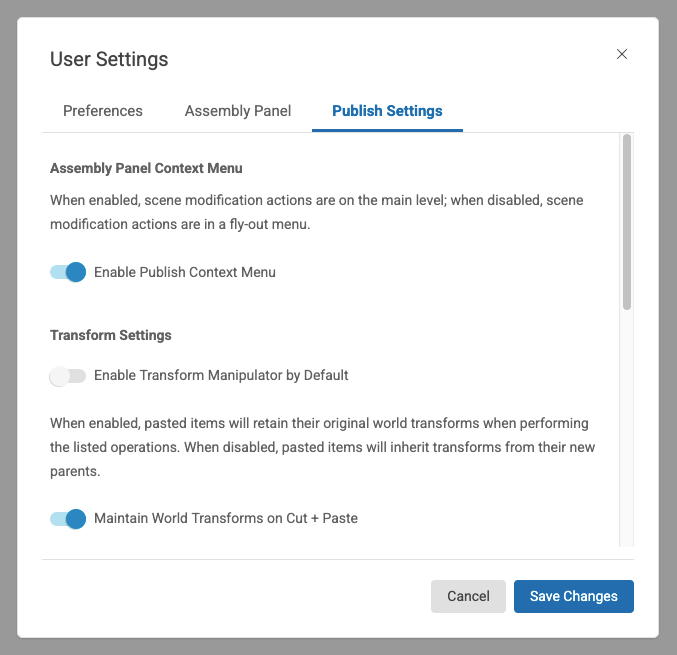
Assembly Panel Context Menu Setting
- Enable Publish Context Menu: When this is on, actions that change the scene, such as Insert, Replace, Cut, and Delete, are located on the top level of the context menu you see when you right-click an item in the scene tree. When it's off, these actions are grouped in the Modify fly-out menu.
Publish Context Menu: 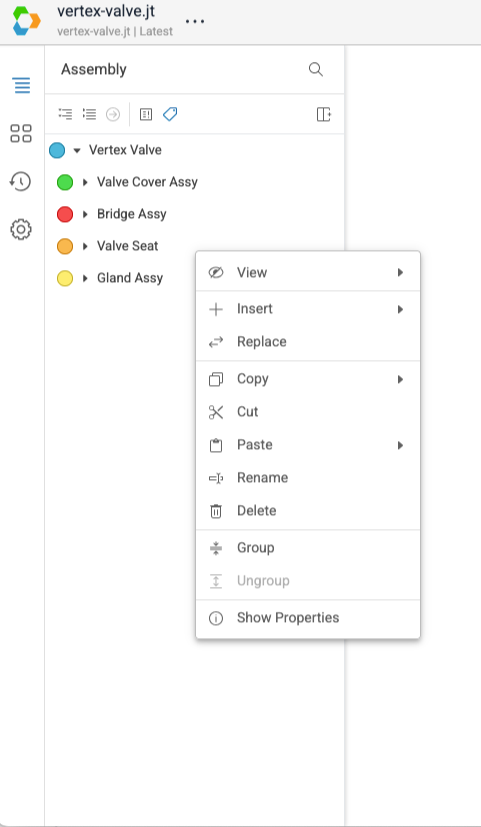
Default Context Menu: 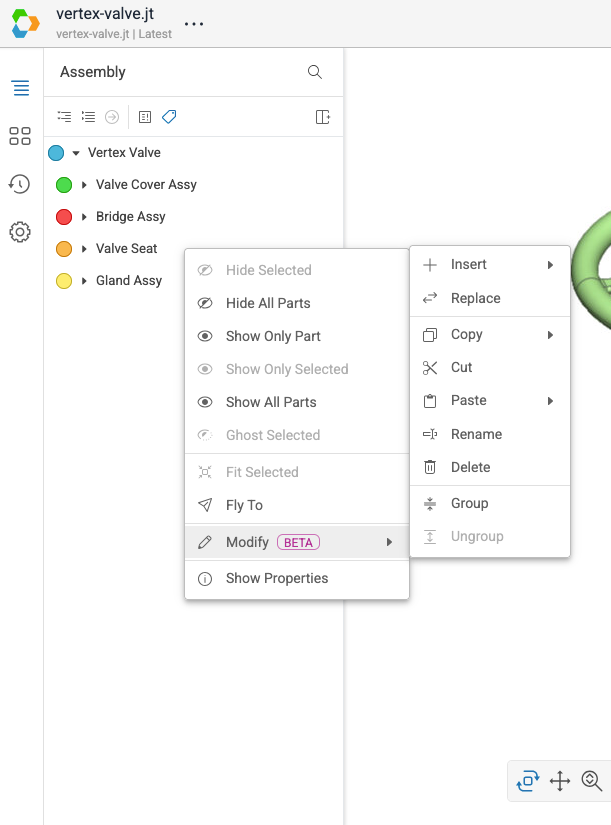
Transform Settings
- Enable Transform Manipulator by Default: When this is on, the transform manipulator appears automatically when you select an item, so you can move or rotate it right away. You are still able to turn off the transform manipulator in the Transforms sidebar.
- Maintain World Transforms on Cut + Paste: When this is on, an item you cut and paste keeps its original position and rotation in the scene. When it's off, the item takes on the transform of its new parent. Thus, enable this setting when you want to move an item to a different parent without changing its position or rotation in the scene.
- Maintain World Transforms on Copy + Paste: Similarly, when this is on, an item you copy and paste keeps its original position and rotation in the scene. When it's off, the item takes on the transform of its new parent.
Unsaved Changes Setting
- Notify of Unsaved Changes: When this is on, you will see a reminder if you try to leave the viewer with changes that haven't been saved to the base scene. See Update Base Scene.