
The Missing Parts Report lists items in the scene that have neither geometry nor children, so you can easily find and fix missing parts. It's most useful when you're preparing or optimizing a large assembly and need to confirm that every part appears visually in the model.
- Open a model in Publishing mode.
- Select the Missing Parts Report icon in the right-hand menu. The report opens in the sidebar and lists each item with missing geometry.
- To find an item in the scene tree: Select an item in the report to jump to it in the scene tree. The scene tree will open, if it was closed, and will scroll to the item so you can work on it.
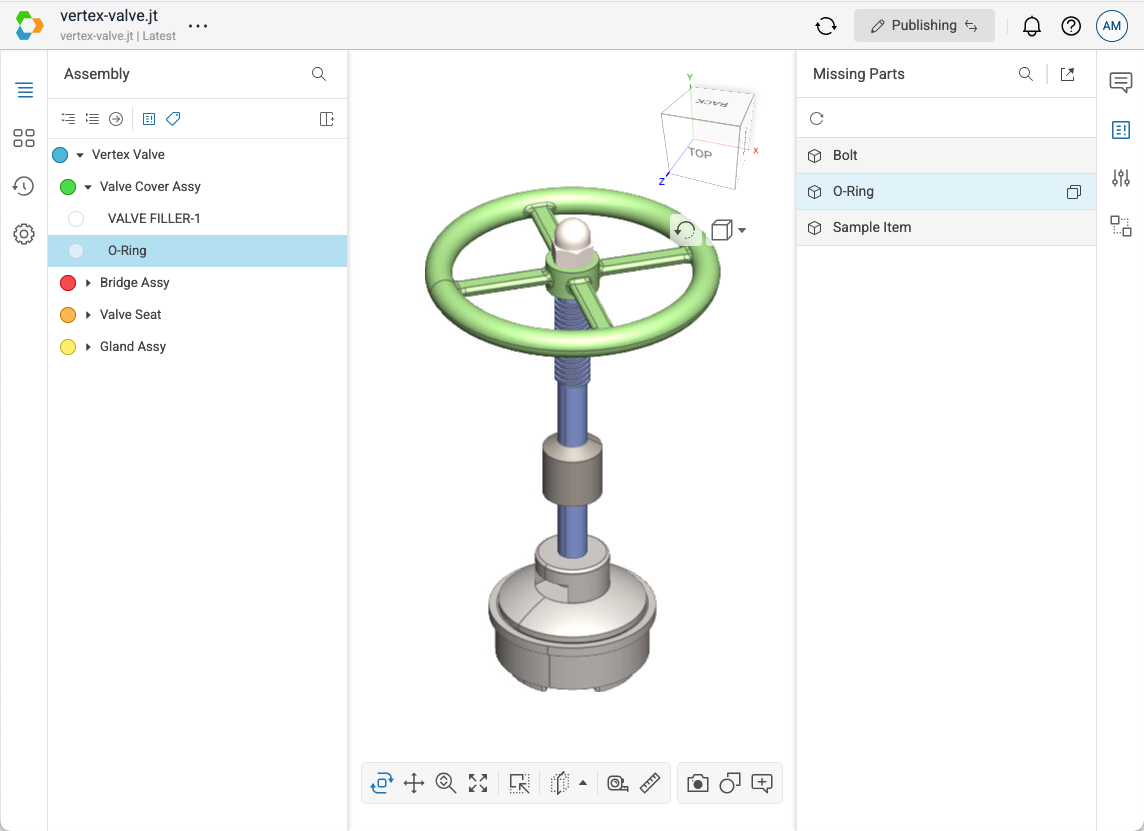
- To search within the report: Select the search icon and enter all or part of an item's name.
- Select the Copy button next to an item to copy its name. This is helpful when you need to share a missing part with a teammate or look it up in another system.
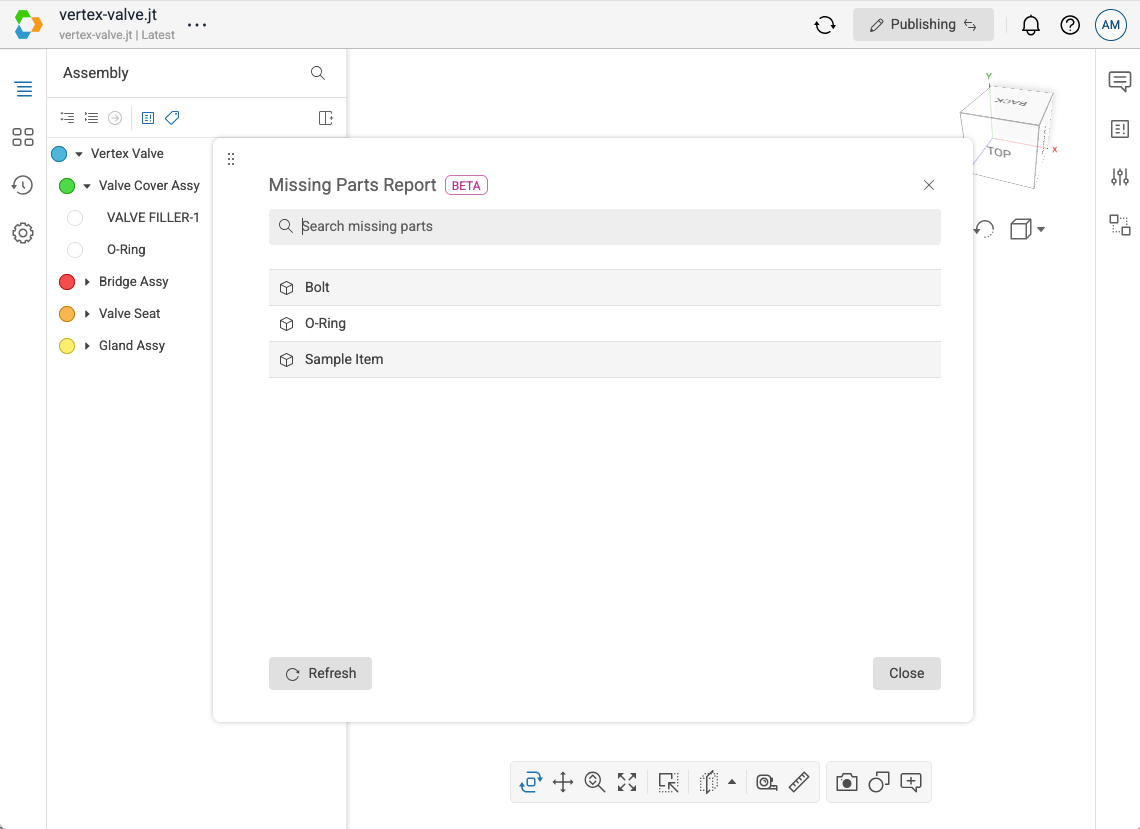
To see more of the list at once, select the Open icon in the sidebar header to open the report in a separate dialog.
Fix a Missing Part
Once you've found an item that is missing geometry, use the publishing tools to resolve it. For example:
- Replace the item with the correct part from your Parts Library. See Replace An Item.
- Insert the missing part under the correct parent. See Insert An Item from the Parts Library.
- Delete the item if it isn't needed. See Delete An Item.