This feature allows users to group an item with children, or compress the subtree underneath the item into a single line item in the scene tree. When an item is grouped, the expansion arrow in the scene tree is replaced with a lock icon and its children are no longer visible in the scene tree. Thus, the selection and visibility of the assembly can only be toggled as a group, and the children cannot be individually selectable or hidden. The item can be ungrouped in order to expand it back to its previous state where its children are individually visible and selectable.
Grouping changes are not saved automatically to the scene tree and need to be manually saved with Update Base Scene.
To group a parent item:
- Open a model in Publishing mode.
- In the scene tree, right-click on the parent item you want to group to open the context menu.
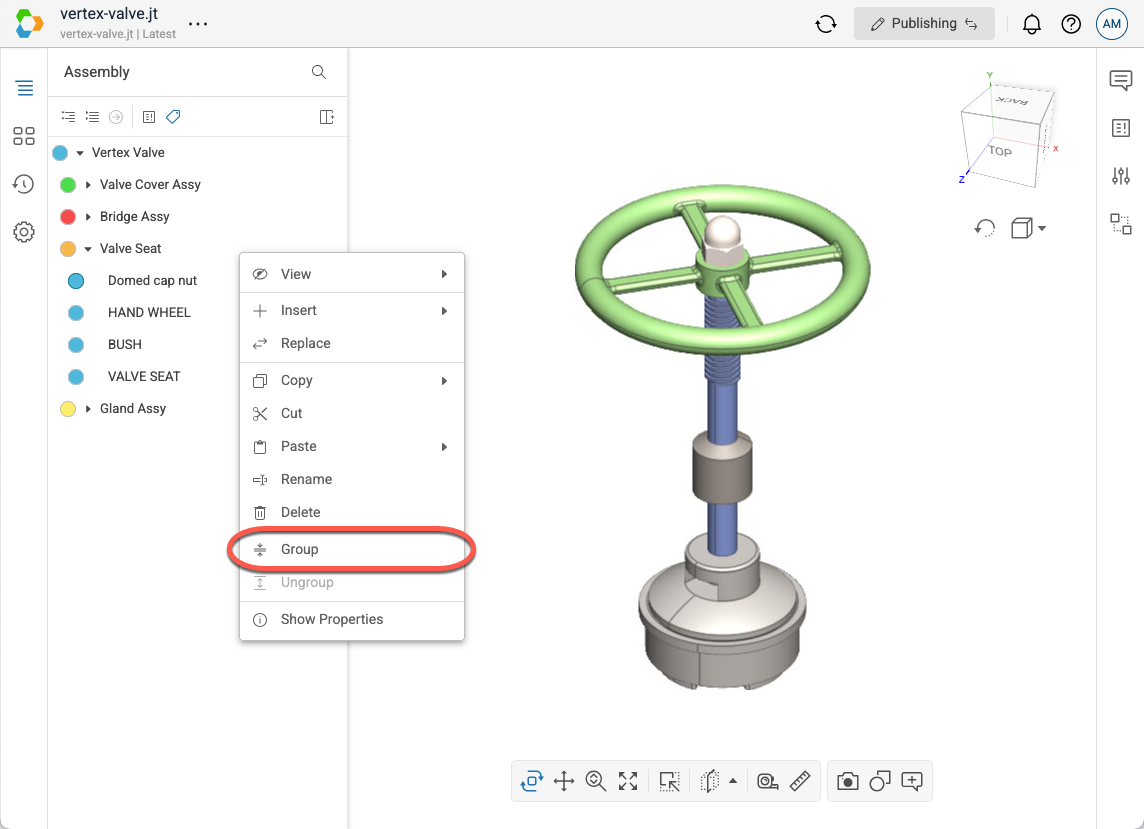
- Select Group in the menu.
- The item must have children in order for the Group option to be enabled.
- Note that if you do not have the Publish context menu enabled in your User Settings, then the Group menu option will be located in the Modify fly-out menu.
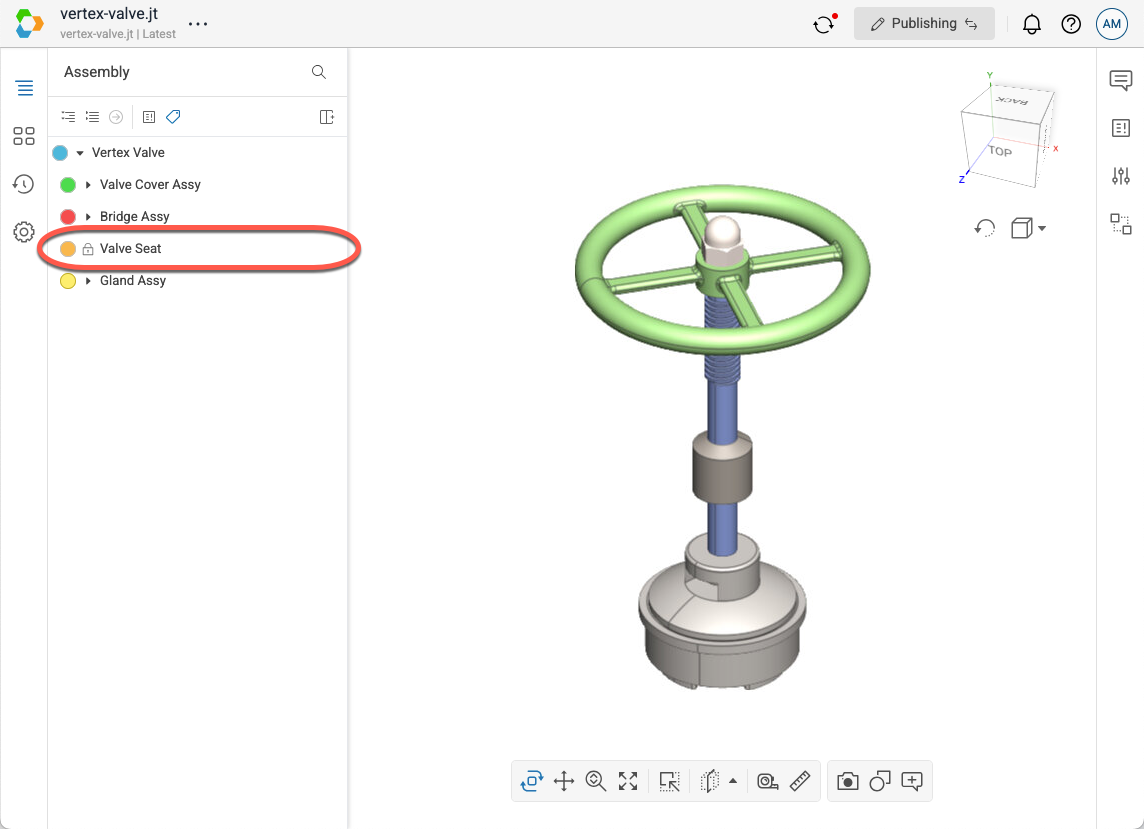
- The item will now be shown with a lock icon in the scene tree instead of the expansion arrow. The item’s children are no longer individually visible or selectable.
To ungroup a parent item:
- Open a model in Publishing mode.
- In the scene tree, right-click on the grouped item you want to ungroup to open the context menu.
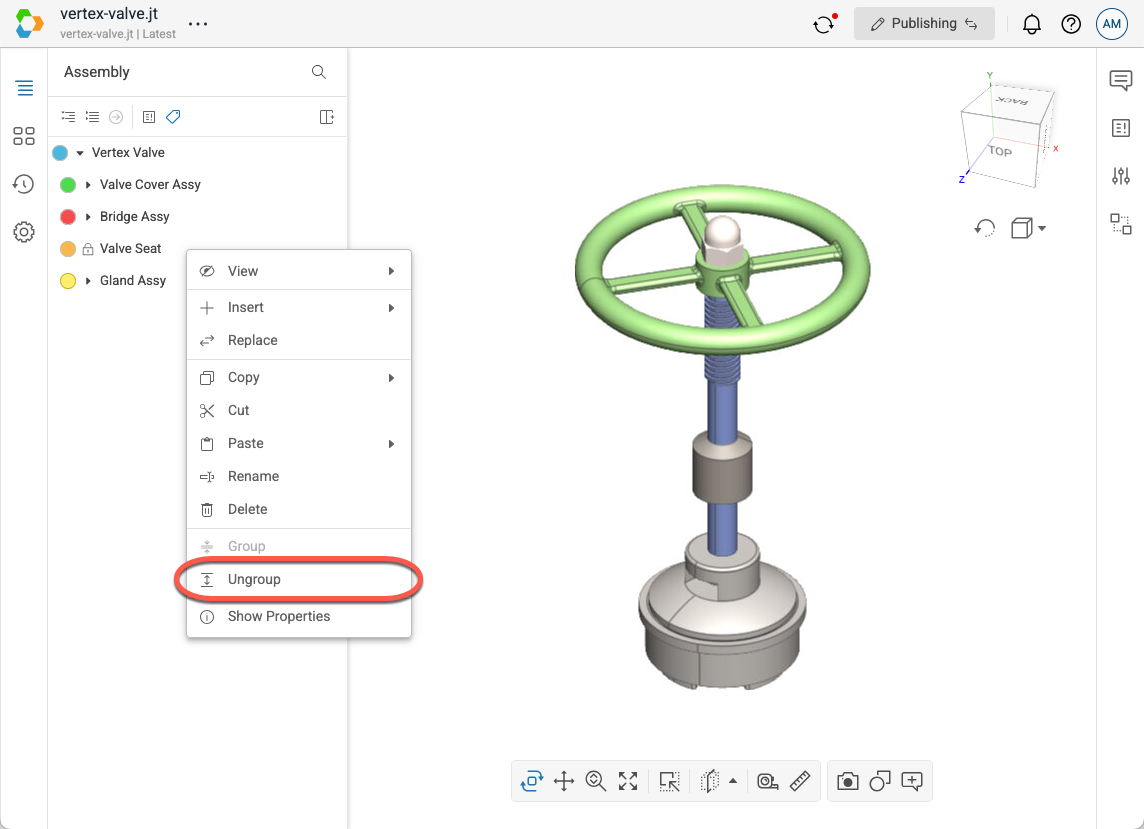
- Select Ungroup in the menu.
- The item must be currently grouped in order for the Ungroup option to be enabled.
- Note that if you do not have the Publish context menu enabled in your User Settings, then the Ungroup menu option will be located in the Modify fly-out menu.