This feature can be used to move an item to a different position in the scene tree. Items pasted into the scene tree are saved automatically and all users viewing the scene will see the updated scene tree.
- Open a model in Publishing mode.
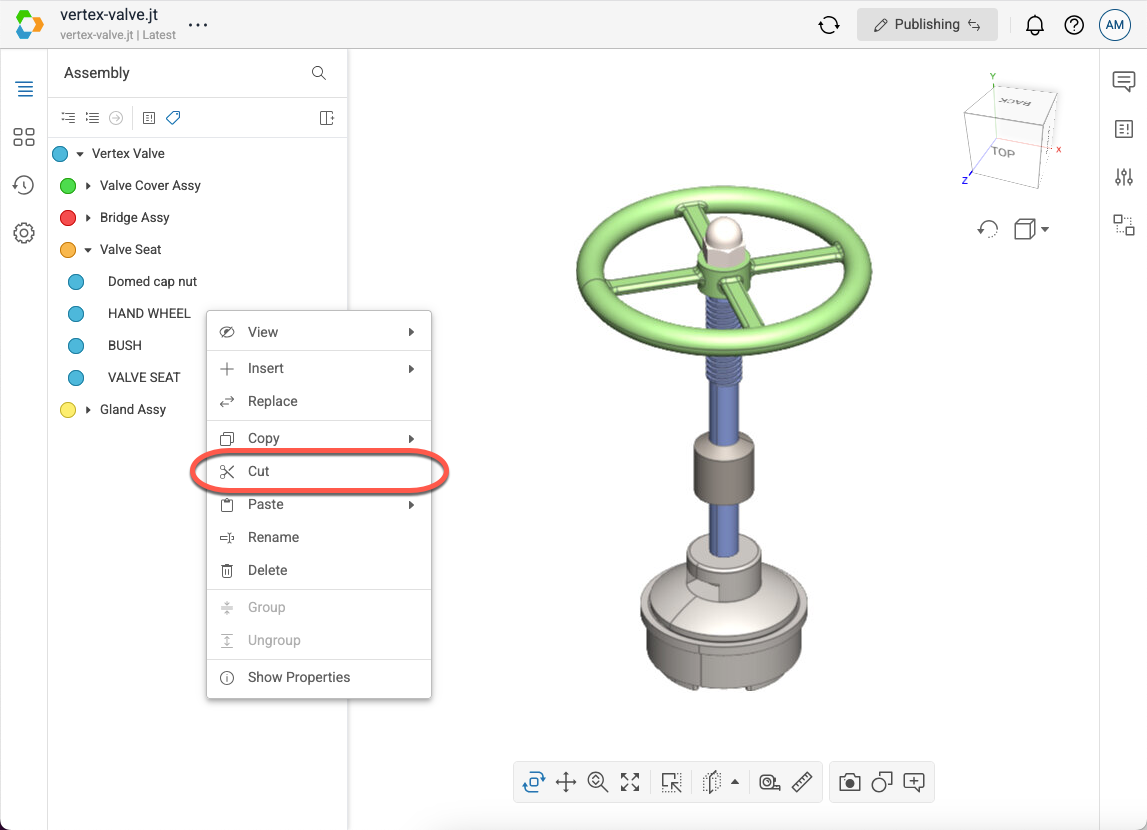
- In the scene tree, right-click on the item you want to cut to open the context menu.
- Select Cut in the menu.
- Note that if you do not have the Publish context menu enabled in your User Settings, then the Cut menu option will be located in the Modify fly-out menu.
- Note that if you do not have the Publish context menu enabled in your User Settings, then the Cut menu option will be located in the Modify fly-out menu.
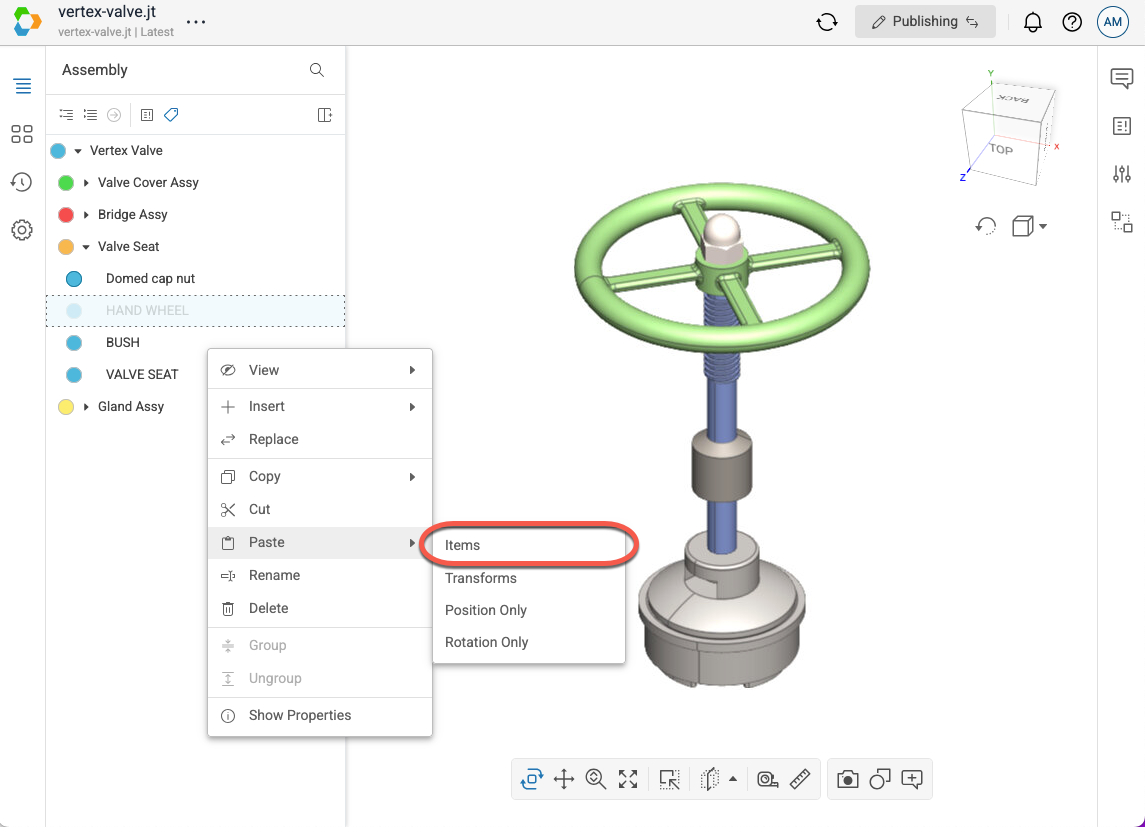
- In the scene tree, right-click on the item you want to paste onto in order to open the context menu. The item you right-click on will become the parent of the pasted item.
- Select Paste > Item in the menu.
- Note that if you do not have the Publish context menu enabled in your User Settings, then the Paste menu option will be located in the Modify fly-out menu.
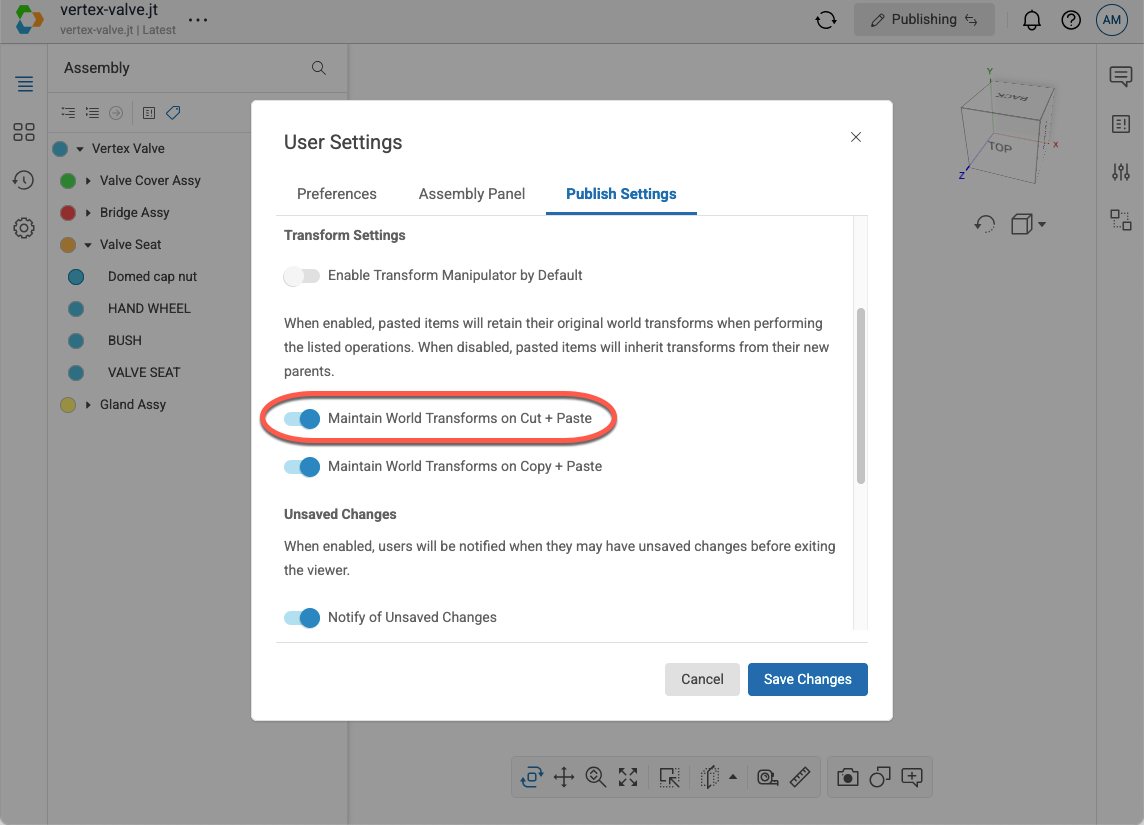
Note: You can control whether the item’s transform should be persisted after the paste operation by toggling the Maintain World Transforms on Cut + Paste setting in your User Settings.